
Team management
Your team is everyone who can sign in to your BrandCast account. Click Account in the sidebar and open the Team tab.
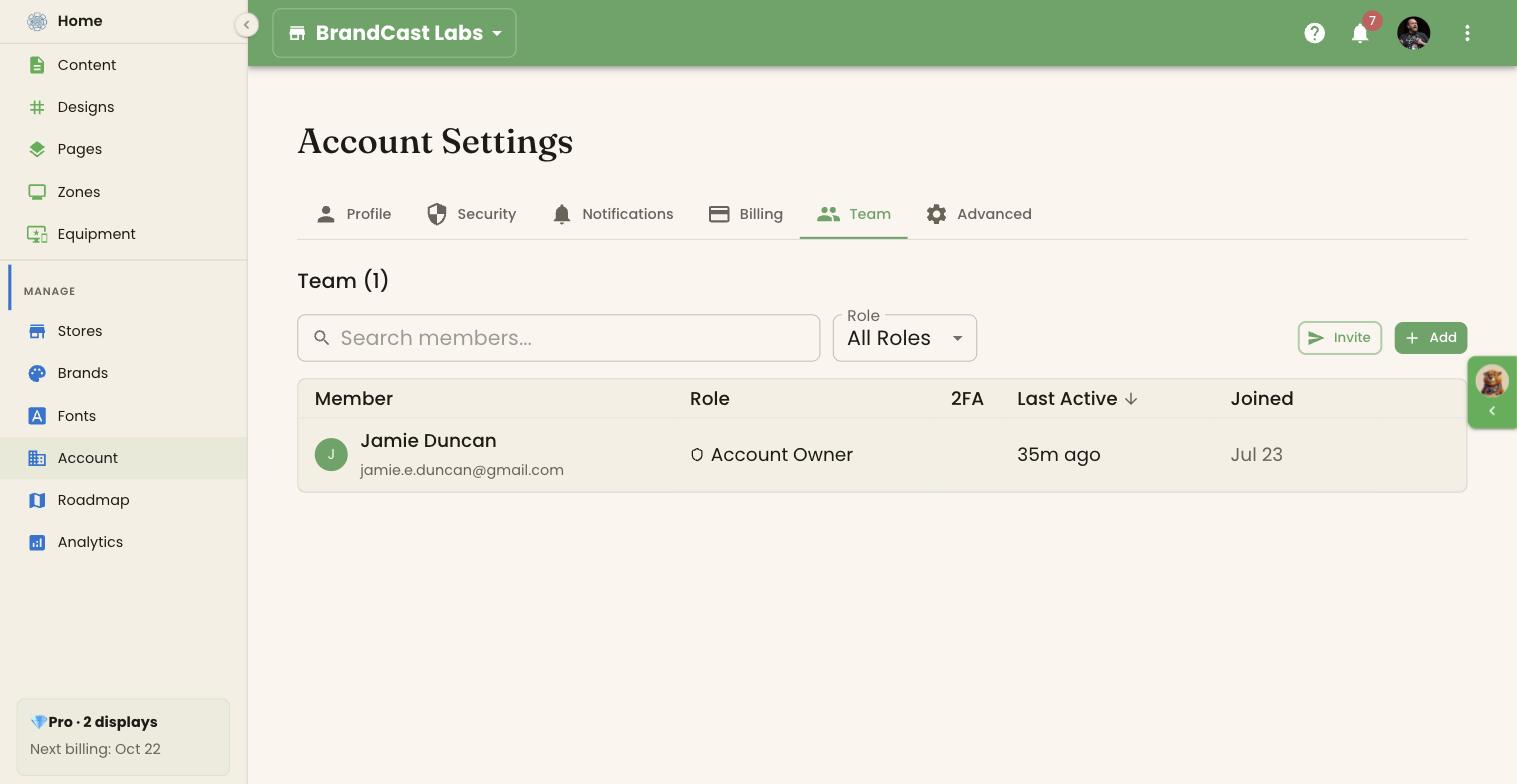
The team list
Section titled “The team list”Team (N) shows how many members you have. Each row shows:
- Member — name and email
- Role — Account Owner, Store Manager, Store Viewer, or Brand Partner
- 2FA — a shield when the member has turned on two-step sign-in
- Last Active — when they last used BrandCast
- Joined — when they were added
Search members… finds someone by name or email, and Role shows one role at a time. Click the Member, Role, Last Active, or Joined heading to sort by it.
The Account Owner sees the whole team. Store Managers and Store Viewers see the members of the store that’s selected in the store picker. Brand Partners don’t have a Team tab.
Only the Account Owner can invite, add, edit, and remove members. See Roles and permissions.
Invite someone
Section titled “Invite someone”An invitation emails a link. The person sets their own password when they accept it.
- In the store picker at the top of the page, choose the store they’ll work on. The invitation is for that store.
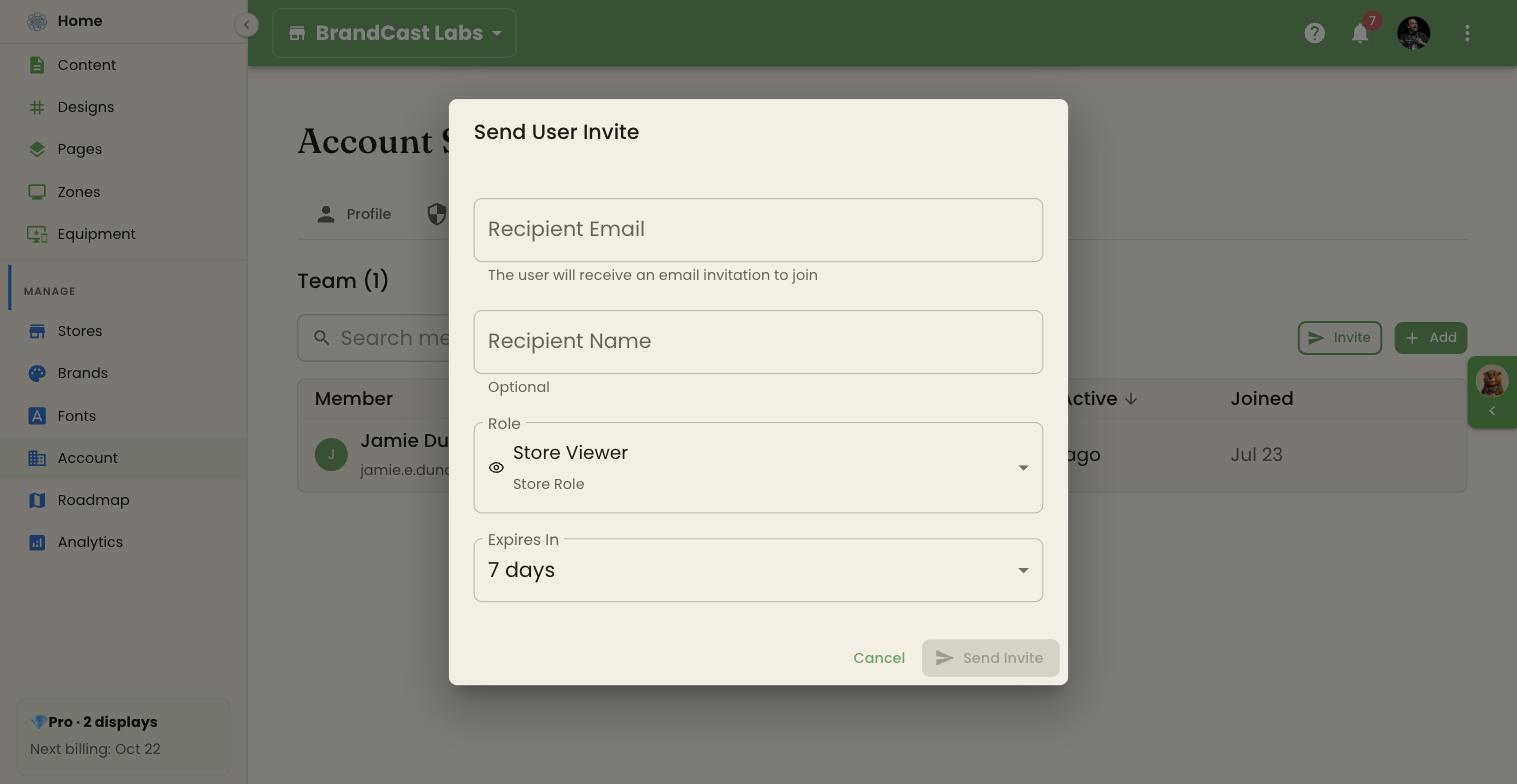
- Click Invite.
- Enter the Recipient Email. A Recipient Name is optional.
- Choose a Role. It starts on Store Viewer.
- Choose when the link Expires In: 1, 3, 7, 14, or 30 days. It starts on 7.
- Click Send Invite.
Invitations need Pro. On Free, Invite explains that team invitations are a paid feature. See Plans and pricing.
Pending invitations
Section titled “Pending invitations”Invitations that haven’t been accepted are listed under Pending Invites (N), each with its role and how long it has left, or Expired.
- Resend invite emails the link again.
- Revoke invite cancels it, so the link stops working.
Accepting an invitation
Section titled “Accepting an invitation”The link opens an invitation page that shows the account, the role, and who sent it.
- Someone new to BrandCast clicks Create Account and enters a name, the invited email address, and a password. They’re signed in and land in BrandCast straight away.
- Someone with a BrandCast login signs in with the invited email address and clicks Accept Invitation. If they sign in with a different address, the page warns them instead.
An expired or cancelled link shows Invalid Invitation. Send a new one.
Add someone directly
Section titled “Add someone directly”To set up a sign-in yourself and hand it over, click Add:
| Field | What to enter |
|---|---|
| Name | Their name |
| The address they’ll sign in with | |
| Password | A password you choose for them |
| Role | Starts on Store Viewer |
| Assign to Store | The store they’ll work on |
| Marketing Communications | Whether they get BrandCast announcements and offers |
Click Create User. They can sign in straight away. Ask them to change their password from Account → Security.
Give someone more stores
Section titled “Give someone more stores”A Store Manager or Store Viewer works on the stores they’re assigned to. To add another store, open it under Stores, click Manage users, and assign them there. See Stores.
Edit a member
Section titled “Edit a member”Click the pencil on a member’s row. In Edit Member, change their Name, Email, Role, or Marketing Communications, then click Update User. A role change takes effect straight away.
Members change their own password from Account → Security.
Remove a member
Section titled “Remove a member”Click the bin on a member’s row.
- If something has to be sorted out first, the dialog lists it under Required actions. Removal waits until you’ve done it.
- If the member is the primary owner of a store, Transfer Ownership invites someone else to take it over first.
- Removing a member also deletes the content they created. The dialog lists it before you confirm.
Removing a member can’t be undone, and they lose access straight away.
Troubleshooting
Section titled “Troubleshooting”The invitation didn’t arrive. Check their spam folder and the address under Pending Invites. Click Resend invite, or revoke it and invite the right address.
“A user with this email already exists in this account”. They’re already on your team. Search for them in the list.
A member can’t see a store. Store Managers and Store Viewers only see their assigned stores. Assign them from the store’s Manage users.