
Scheduling Designs on screens
A screen plays one Design at a time. You choose which Design plays when in either of two places, and they edit the same schedule:
- From a screen — its week calendar, in the display’s panel under Zones. Best for seeing everything one screen does across the week.
- From a Design — Where & when, which lists every screen. Best for putting one Design on several screens at once.
Changes save as you make them, and screens pick them up within about a minute.
The week calendar
Section titled “The week calendar”Open a display from Zones. The week calendar sits in the Screen card: a column for each day, Monday to Sunday, from midnight at the top to midnight at the bottom.
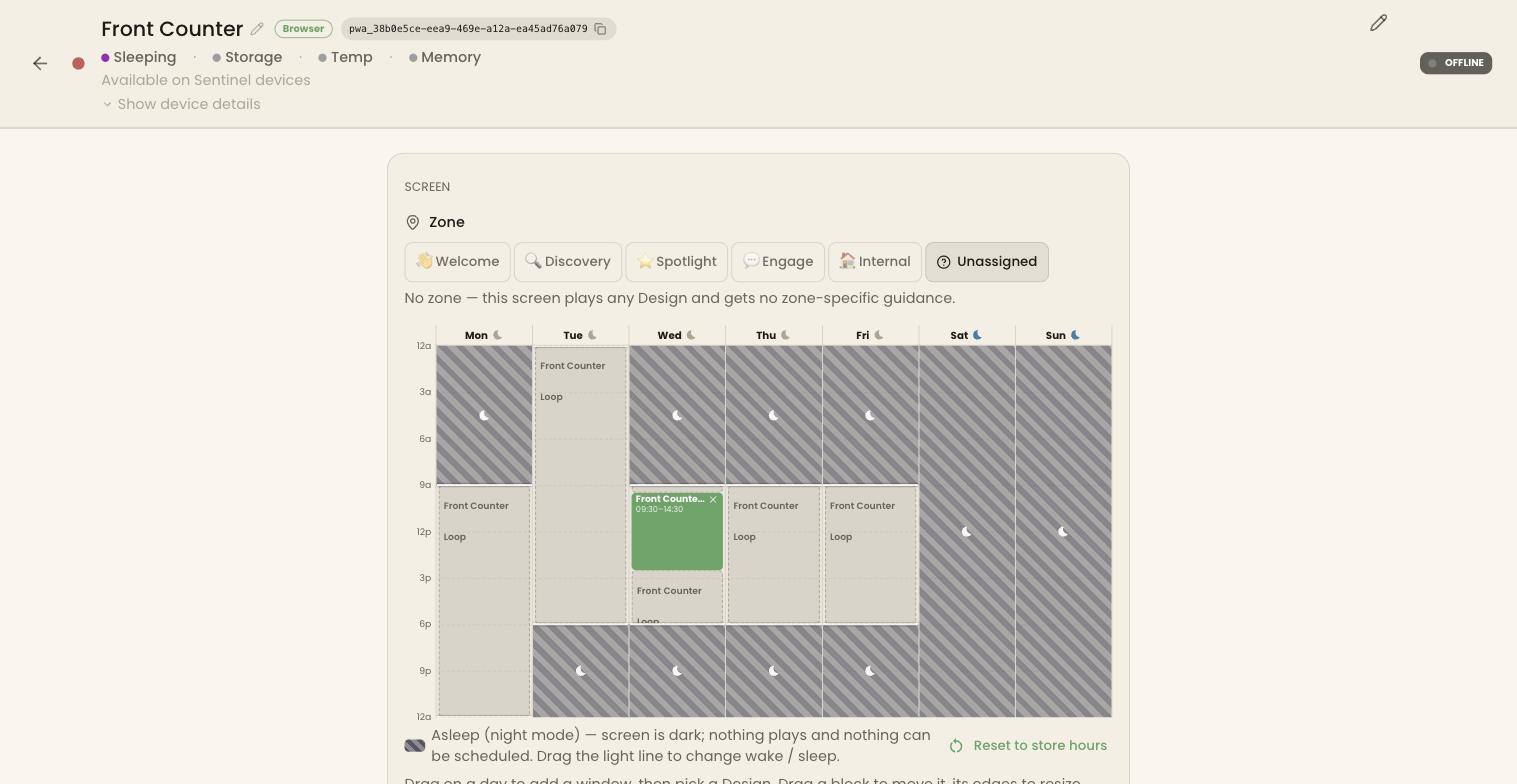
To schedule a Design, drag down a day over the hours you want, then pick a Design from the list that appears. Times snap to 15 minutes. The list offers only Designs that suit the screen’s zone — see The display panel.
To change a block:
- drag it to move it;
- drag its top or bottom edge to change its hours;
- click its × to remove it from that day only;
- double-click it to open that Design in the editor.
Dashed blocks show the screen’s fallback Design: hover one for Plays whenever nothing else is scheduled. It fills every awake hour that has no block of its own. Set or change it with Design in Edit Display — see Adding a display.
Night mode on the calendar
Section titled “Night mode on the calendar”Hatched hours are night mode: the screen is dark, nothing plays, and you can’t schedule anything there.
- Drag the light line at the edge of the hatching to change when the screen wakes or sleeps.
- Click the moon beside a day’s name to keep the screen asleep all that day, and click it again to bring the day back.
- Reset to store hours sets every day to sleep whenever your store is closed.
For a one-off change, use Wake now or Sleep now in the display’s settings.
Where & when, from a Design
Section titled “Where & when, from a Design”Open Where & when from either place:
- on Designs, the ⋮ menu on a Design’s card, then Where & when it plays;
- in the editor, Where it plays at the top.
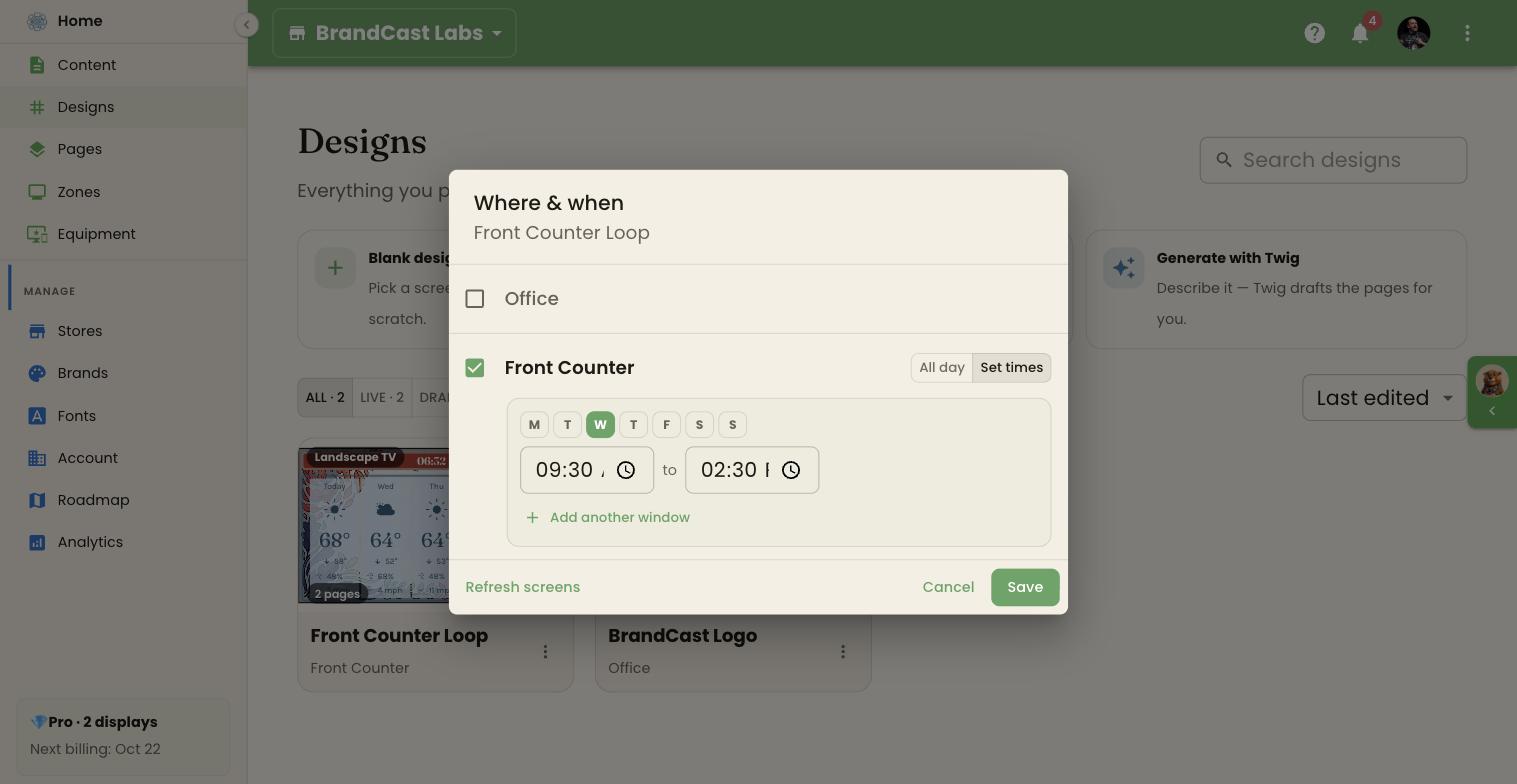
Every screen in the store is listed. For each one:
- Tick the screen to play the Design there; untick it to stop.
- Choose All day, or Set times.
- For Set times, pick the days and the start and end times. Add another window adds more times on the same screen; Remove window deletes one.
- Click Save.
All day means the Design plays whenever the screen is awake and nothing else is scheduled. Timed windows from other Designs take their hours, and this Design fills the rest.
Refresh screens tells every screen the Design plays on to reload it now. It works after you’ve saved and only once the Design is on at least one screen.
Examples
Section titled “Examples”A café. On the menu screen, schedule “Breakfast” 6 AM–11 AM, “Lunch” 11 AM–3 PM, and “Afternoon” 3 PM–close, Monday to Saturday. Set “Afternoon” as the screen’s fallback so Sundays still show something.
One promotion everywhere. Open the promotion’s Where & when, tick every screen, choose Set times for the sale days, and save.
Troubleshooting
Section titled “Troubleshooting”The wrong Design is playing. Open the display and find the current hour on its week calendar. A solid block is a scheduled Design; a dashed block is the fallback. If times look shifted, check the display’s Timezone.
I can’t place a block at some hours. Those hours are night mode. Drag the light line, or click the day’s moon, to wake the screen then.
Nothing plays at some hours. The screen has no block and no fallback Design there. Add a block, set a fallback in Edit Display, or give one Design All day in Where & when.
A Design doesn’t appear in the calendar’s list. Its zone doesn’t match the screen’s. Change the Design’s Zone in its Design Settings, or the screen’s zone in its panel.