
Hub Tab
The Hub tab is your starting point in the Content Hub. It combines a content type picker and your full content library in one place.
Add new content
Section titled “Add new content”A row of icons — one per content category (Sports, Events, Weather, Food, Time, News, Tasks, Social, Slideshow, Video, Documents, Presentations, Spreadsheets, Fun, Employees) — lets you jump straight into creating that type. Hover an icon to see its description. An Add New button next to the row opens the same list as a dialog instead. See Creating Content for what happens after you pick one.
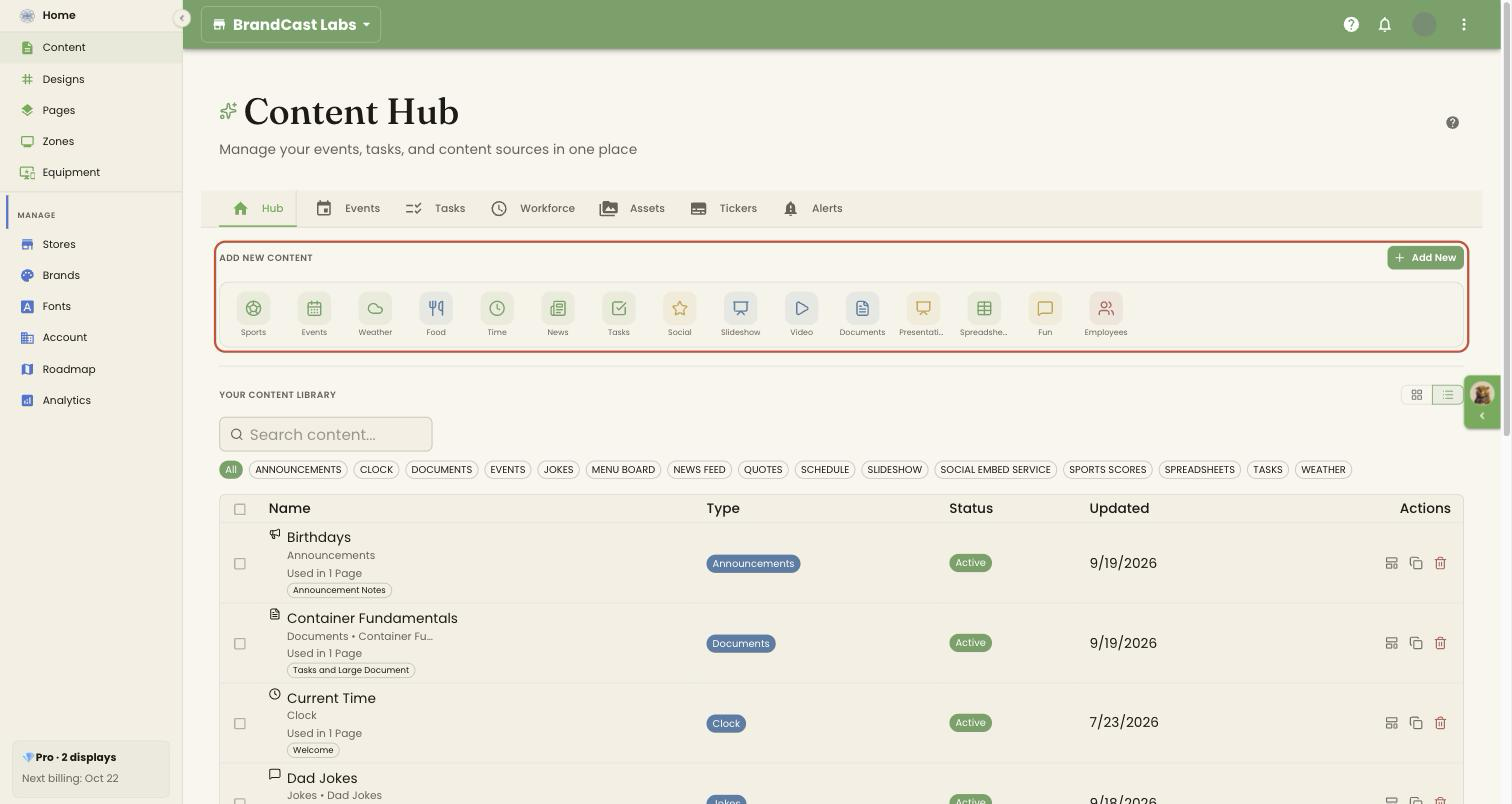
Your content library
Section titled “Your content library”Below that, Your content library lists every content source you’ve created, in a searchable grid or table.
- Type in the Search content… box to filter by name, description, or type.
- Filter chips appear only for the types you actually have sources of — click one to narrow the list to that type, or All to clear it.
- Toggle grid or table view with the view buttons. Table view adds Name, Type, Status, Updated, and Actions columns.
- If a search or filter matches nothing, the grid shows No content matches your search with a Clear filters button.
Each card shows the source’s name and type, with a small dot (hover for Active or Inactive) and — once it’s placed anywhere — Not used on any Page or Used in N Page(s) with a clickable chip for each page it’s on (click one to open that page). A source whose connected account has disconnected shows a warning chip (“Provider connection needs reconnecting”) with a Reconnect button. Click the card itself to edit the source. Hovering reveals Use in a Design, Duplicate, and Delete.
Once you have at least one content source, a Create Page prompt (“Ready to display your content?”) appears below the list, to start arranging it on a page. Before you’ve created any sources, the library shows prompts to get started instead.