
Menu Board
Menu Board is a menu you build and edit directly in BrandCast: sections, items, prices, tags, and photos. There’s no outside data source — if your food service publishes its menu through MealViewer instead, see MealViewer.
Adding a menu board
Section titled “Adding a menu board”- Go to Content > Hub and click Food under Add new content.
- Choose Menu Board and click Next.
- Enter a Name. Click Add Section, name it, and click Add Item inside it. Set the display options below and click Next.
- On Add to page, pick a page and area to put it on, or click Next to skip.
- Click Create.
A new menu board starts with no sections — add at least one before it has anything to show.
Sections and items
Section titled “Sections and items”Each section has a Section Name, an Enabled switch, and its own items. Use the up and down arrows to reorder sections and items. Turn Enabled off to hide a section without deleting it. Click the pencil on an item to edit it, and Update to keep your changes.
For each item:
| Field | Notes |
|---|---|
| Item Name | Required |
| Price | A single price, or leave blank for no price |
| Size Variants | Add one or more labeled sizes (e.g. SM/MD/LG) with their own prices; this replaces the single Price for that item |
| Description | Optional, shown in smaller text below the name |
| Image | Pick one from your asset library |
| Tags | Any of Vegetarian, Vegan, Gluten-Free, Dairy-Free, Nut-Free, Spicy, New, Popular, Seasonal |
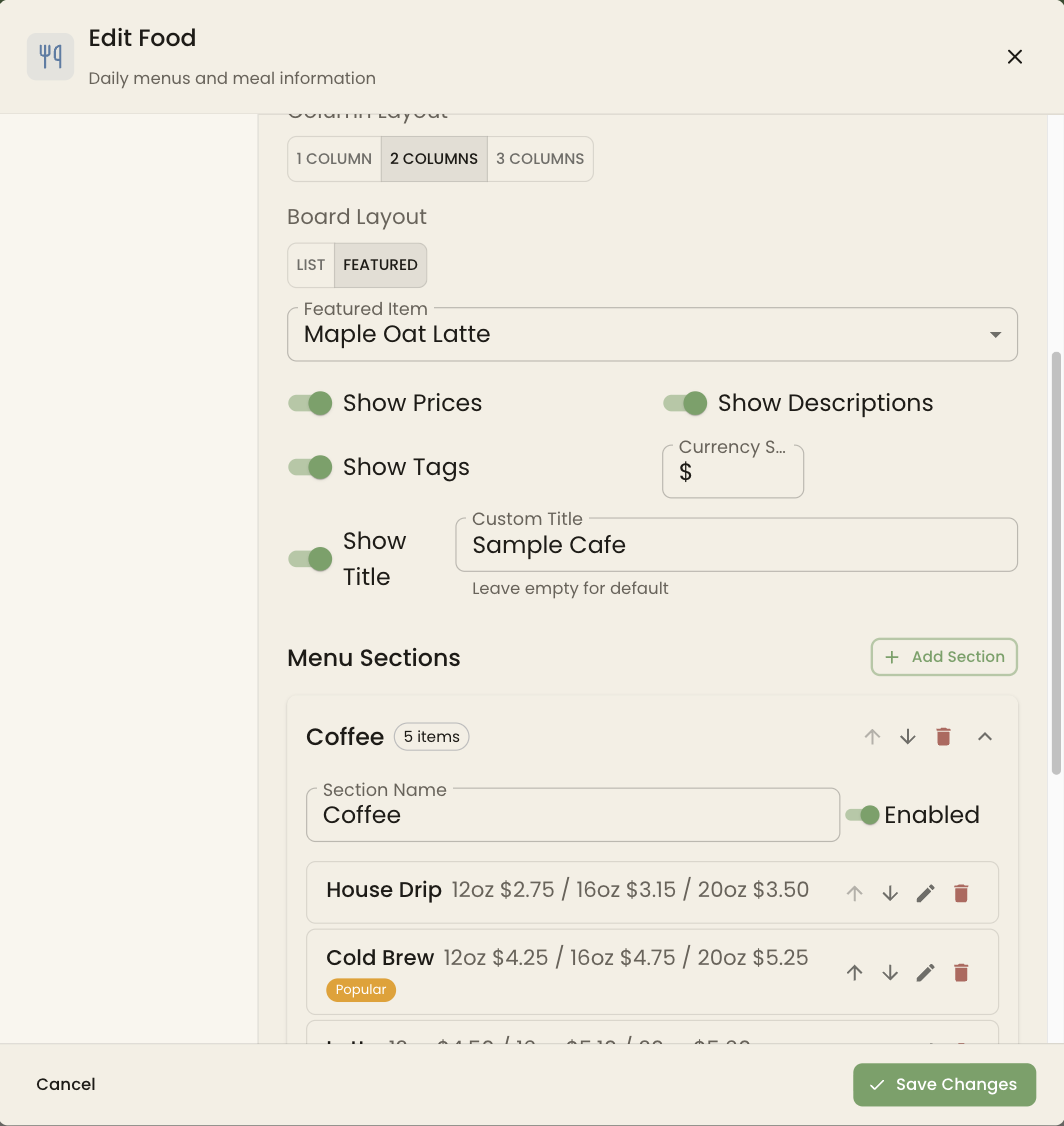
Display settings
Section titled “Display settings”| Setting | Options | Default |
|---|---|---|
| Column Layout | 1, 2, or 3 columns | 2 |
| Board Layout | List, Featured | List |
| Featured Item | Any item in an enabled section (Featured layout only) | None |
| Show Prices | On/off | On |
| Show Descriptions | On/off | On |
| Show Tags | On/off | On |
| Currency Symbol | Any text, e.g. $ | $ |
| Show Title | On/off, with a Custom Title when on | On |
Featured layout puts the item you pick as Featured Item in a hero panel beside the sectioned list; if you later turn off that item’s section, the hero panel is dropped until you pick another.
A section with size variants shows one price column per size (e.g. SM / MD / LG) across all its items, built from whichever sizes you’ve actually used in that section.
Troubleshooting
Section titled “Troubleshooting”The board looks crowded. Try 3 columns, turn off Show Descriptions, or split into two menu boards (for example, food and drinks) instead of one long list.
A price change isn’t showing. The board re-renders from what you saved, usually within a few minutes. Reopen the menu board and confirm the price saved correctly.