
Creating Content
A content source is something BrandCast keeps up to date on a screen for you, such as a clock, the weather, a slideshow, or a menu. You can add one from the Content Hub or from the page editor. Either way it’s saved to your library, where any page can use it.
For the full list of types, see Content types.
From the Content Hub
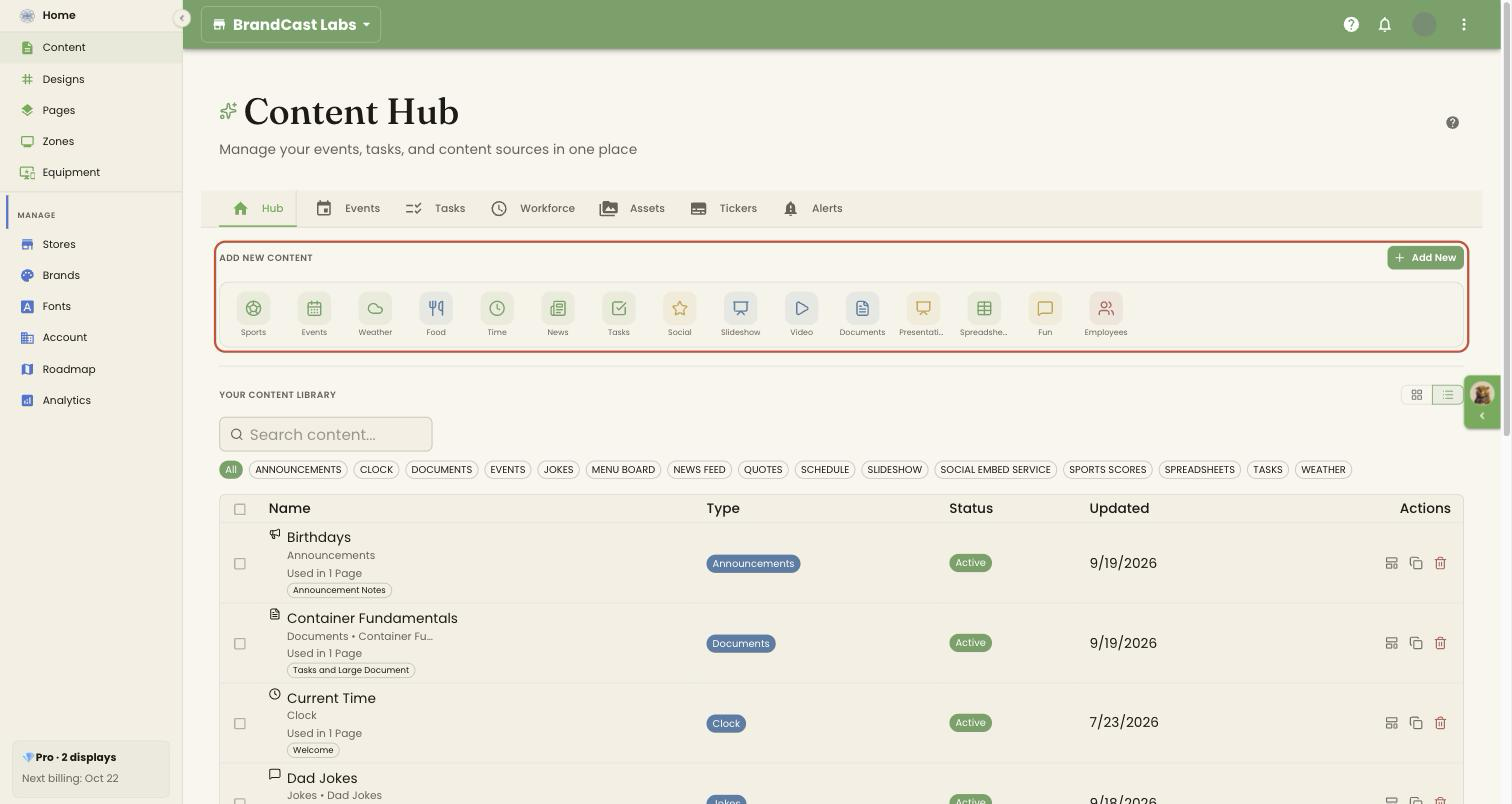
Section titled “From the Content Hub”- Go to Content > Hub and click a category under Add new content, such as Time, Weather, or Fun. Add New opens the same categories in a dialog.
- If the category has more than one type (for example Time has Clock, Countdown Timer and Count-Up Timer), choose one and click Next.
- Enter a Name, fill in the settings, and click Next.
- On Add to page, pick a page and the area to put it in, or click Next to skip. This step only appears when you start from a category under Add new content.
- Check the summary and click Create. If you picked a page, Create & Edit Page creates it and opens that page.
From the page editor
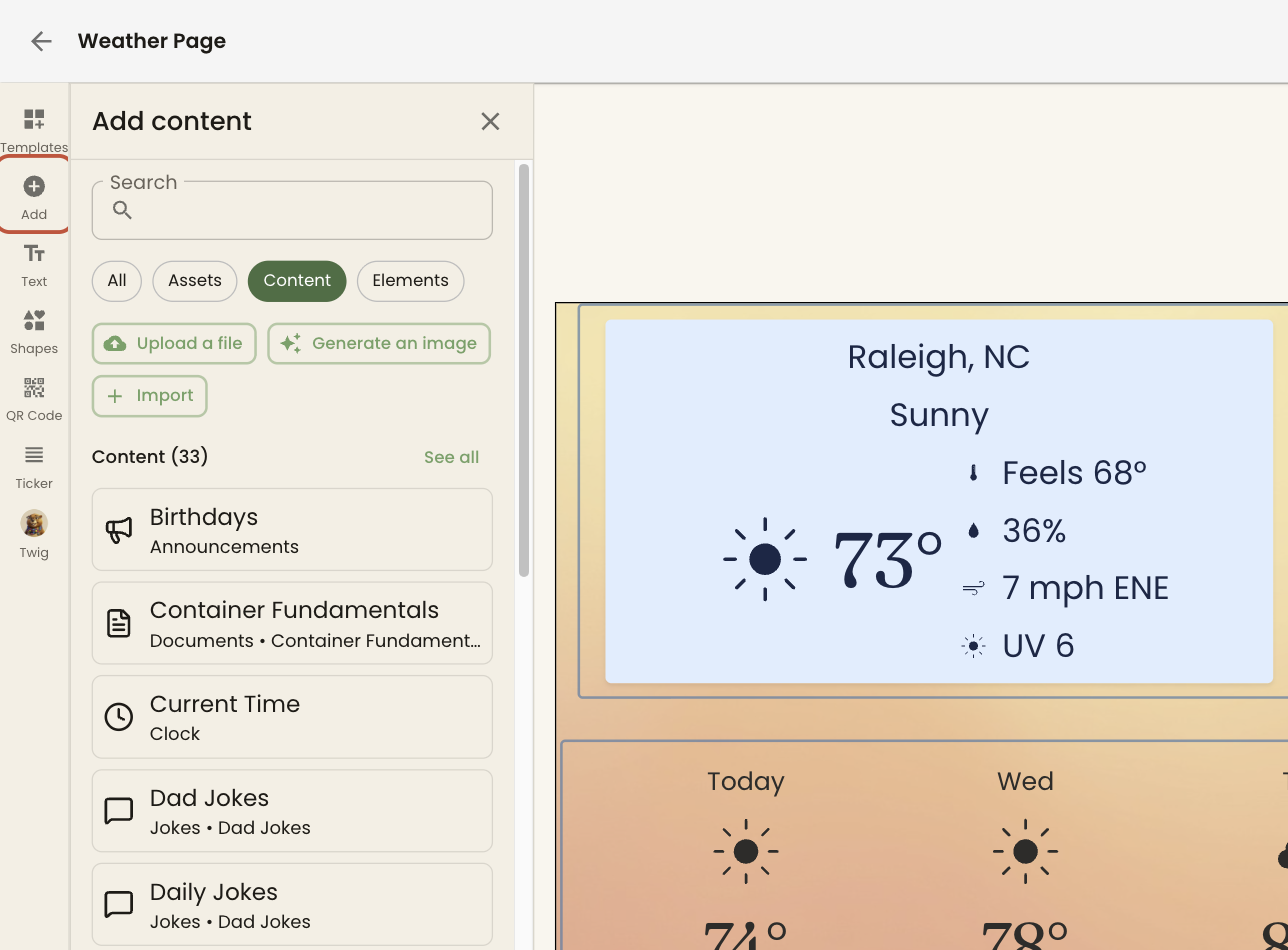
Section titled “From the page editor”- Open a page and click Add in the rail on the left.
- The Add content panel lists your Assets, your existing Content, and Elements (stickers and animations). Use Search or the All, Assets, Content and Elements chips to narrow it.
- Click an item to put it on the page.
Below your existing content, the panel lists the types you haven’t used yet. Click Set up on one to create it and place it in one step.
After you create it
Section titled “After you create it”A source in your library isn’t on a screen until it’s on a page, and that page is in a design that’s playing on the screen. Colors, fonts, and spacing are set on the page’s area in the Design editor, not on the source.
To change a source’s settings later, click it in Your content library on the Hub tab. Changes reach every page that uses it.
Troubleshooting
Section titled “Troubleshooting”The type I want isn’t under Add new content. Some sources are set up on their own tab first: calendars on Events, task lists on Tasks, and schedules on Workforce. Files and photos are added on Assets. Then add the Events, Tasks, Employees, Documents, Presentations, Spreadsheets or Slideshow content that shows them.
A source shows a reconnect warning. The account behind it has been disconnected. Click Reconnect on its card in Your content library.