
Integrations Overview
Integrations bring content from services you already use onto your screens: photos, documents, staff schedules, school menus, and customer reviews. Some need you to sign in to the other service. Others only need a link or a search.
Available integrations
Section titled “Available integrations”| Integration | What it brings in | Where you set it up | Sign-in |
|---|---|---|---|
| Google Workspace | Slides, Docs, Sheets, Photos, and Tasks | Content > Assets > Add, or the content item | Google, one connection per service |
| Apple Photos | Photos from an iCloud Shared Album | Content > Assets > Add | None. Uses the album’s public link |
| Pexels | Free stock photos | Content > Assets > Add | None |
| Canva | Canva designs | Content > Assets > Add | Canva. Not available yet |
| Google Reviews | Your store’s Google reviews | Content > Hub > Social | None |
| MealViewer | School breakfast and lunch menus | Content > Hub > Food | None. Search for your school |
| ZoomShift | Staff shifts | Content > Workforce | None. Uses a calendar feed URL |
| Sling | Staff shifts | Content > Workforce | Google, the account you use for Sling |
| Google Sheets Schedule | Staff shifts from a spreadsheet | Content > Workforce |
Events, news, sports scores, weather, and social media embeds don’t need an account at all. See Events, News feeds, Sports scores, and Social embeds.
Where connections live
Section titled “Where connections live”Connections belong to a store, not to your whole account. If you run more than one store, connect each store separately.
You usually connect while you add content: when a dialog needs access you haven’t granted yet, it shows a Connect button. A Google or Canva window opens, you sign in and approve read-only access, and the dialog carries on.
To see a store’s connections, or to remove one:
- Open Stores in the sidebar and click the store.
- Scroll to Integrations. The OAuth Services list shows Google Tasks, Canva, Google Photos, Google Docs, and Google Slides, each with its own Connect or Disconnect button.
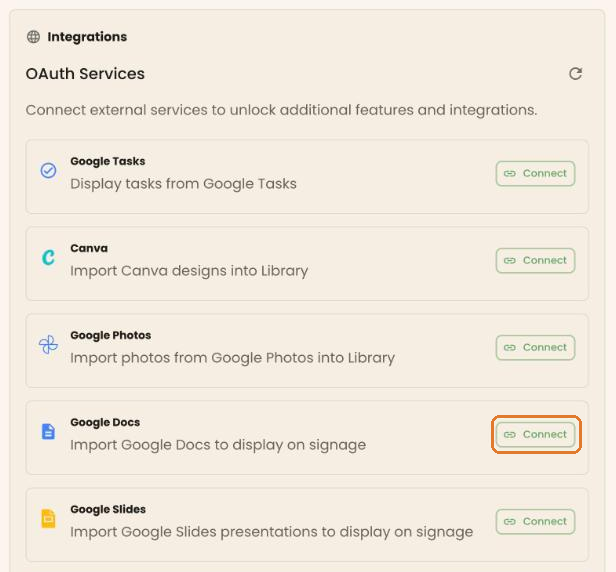
Google Sheets and Sling don’t appear in this list. Their connection is made inside the schedule source or spreadsheet you set up, and it shows there as Connected.
Read-only: Every connection asks for read-only access. BrandCast can’t change or delete anything in your Google, Canva, or Sling account.
How content stays up to date
Section titled “How content stays up to date”| Integration | How often it updates |
|---|---|
| Google Slides and Docs | On the Auto-Refresh Schedule you pick for each file: manual only, every hour, every 6 hours, daily at 6 AM, or daily at midnight |
| Google Sheets | Once a day, overnight between midnight and 4 AM store time |
| Google Photos, Pexels | Imported once. The photos are copies in your library |
| Apple Photos | Imported once, or rechecked daily if you turn on Keep this album in sync automatically |
| Google Reviews | Once a day |
| MealViewer | Menus are cached for up to an hour |
| ZoomShift, Sling, Google Sheets Schedule | On the source’s Sync Interval: every 3, 6 (the default), 12, or 24 hours. Sync Now on the source card updates it straight away |
Disconnecting
Section titled “Disconnecting”Click Disconnect next to the service in the store’s Integrations section. Content that came from it stops updating. Photos already imported into your library stay there.
Troubleshooting
Section titled “Troubleshooting”A dialog keeps asking me to connect. Connections are per store. Check that the store picker at the top of the admin shows the store you connected.
The Google or Canva window doesn’t open. Your browser may be blocking pop-ups for the admin. Allow pop-ups and click Connect again.
Content stopped updating. Open the store’s Integrations section and check that the service still shows Connected. If it shows Connect instead, connect it again. For a schedule source, check the error on its card in Content > Workforce.