
AI credits and storage
AI credits pay for generating images and video. Storage holds the images, videos, and documents in your library. Both have their own card on the Billing tab, and you can buy more of either in the Equipment store.
AI credits
Section titled “AI credits”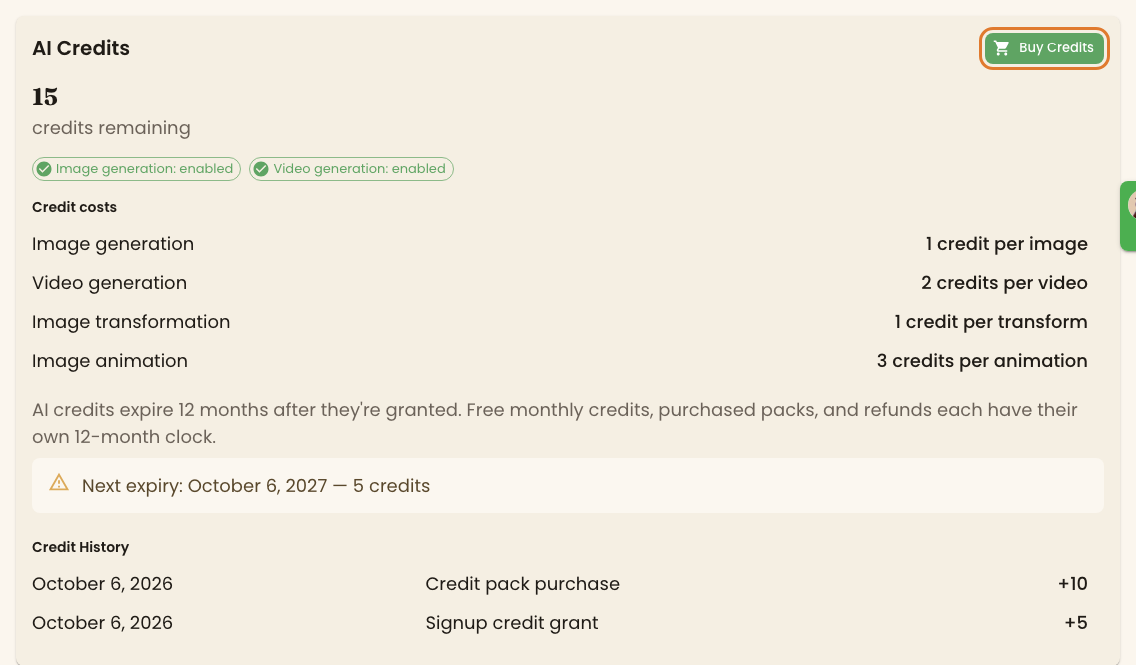
The AI Credits card shows your balance, whether image and video generation are available, what each action costs, when your next credits expire, and a history of what’s been added.
What each action costs
Section titled “What each action costs”| Action | Credits |
|---|---|
| Generate an image | 1 |
| Transform an image | 1 |
| Generate a video | 2 |
| Animate an image | 3 |
Video and animation need Pro.
Where credits come from
Section titled “Where credits come from”- Free gets 5 credits when you sign up.
- Pro gets 5 credits every calendar month.
- You can buy credit packs on either plan.
Every grant and every pack expires 12 months after you get it, and your oldest credits are used first. Next expiry on the card shows the date and how many credits expire then. You get an email 30 days before credits expire.
Buy credits
Section titled “Buy credits”Click Buy Credits on the AI Credits card. This opens the AI Credits tab in Equipment.
| Pack | Price | Per credit |
|---|---|---|
| 10 AI Credits | $5.00 | $0.50 |
| 25 AI Credits | $11.50 | $0.46 |
| 60 AI Credits | $25.20 | $0.42 |
| 150 AI Credits | $57.00 | $0.38 |
| 400 AI Credits | $136.00 | $0.34 |
Click Add to Cart on a pack, then Cart, then Checkout, and pay on Stripe’s page. The credits are added as soon as payment goes through, and the purchase shows as Credit pack purchase in the card’s history. For more on the store, see Equipment.
Storage
Section titled “Storage”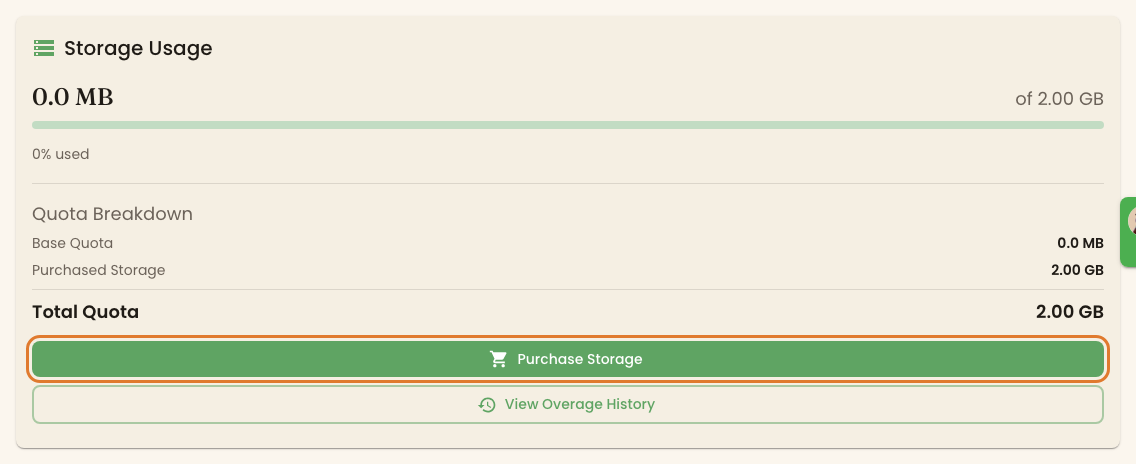
The Storage Usage card shows how much you’ve used, your total quota, and how it’s made up.
| Plan | Storage | When you’re full |
|---|---|---|
| Free | 500 MB | Uploads are blocked until you delete something or upgrade |
| Pro | 1 GB for each active display, plus any storage you’ve bought | Uploads still work, and the extra is billed at $1 per GB on a separate invoice the next month |
You get a warning on the card at 80%, and notifications as you approach and pass your quota.
Buy storage
Section titled “Buy storage”Storage you buy is added to your Pro quota for good. It isn’t a monthly charge.
- Click Purchase Storage on the Storage Usage card. This opens the Storage tab in Equipment.
- Choose Storage (1GB) for $1, Storage (5GB) for $5, or Storage (10GB) for $10, and click Add to Cart.
- Click Cart, then Checkout, and pay on Stripe’s page.
The new storage appears under Purchased Storage on the card.
Free stays at 500 MB. Storage you buy on Free doesn’t raise the Free limit. Upgrade to Pro for more storage. See Managing your subscription.
View Overage History takes you to Billing History, where overage invoices carry a Storage Overage tag. See Invoices and billing history.