
Pairing a device
Pairing connects a device — a BrandCast Player, a Sentinel tablet, or any screen with a web browser — to a display in your store. Once paired, the device plays whatever that display is scheduled to show.
What the device shows
Section titled “What the device shows”A device that isn’t paired yet opens on Register This Display. It shows:
- the address to go to — the BrandCast pair page;
- Enter code: followed by a six-character code of capital letters and digits, such as
7X9P4K; - a QR code, Or scan to pair instantly, that opens the pair page with the code already filled in.
BrandCast Players and Sentinel tablets open this screen on their own when they start. On a smart TV, streaming stick, or computer, open https://displays.brandcast.app in its browser.
If nobody pairs the device for a while, it shows Pairing Session Timed Out and goes to standby. Press RESUME PAIRING on the device to get a fresh code.
Pair a device
Section titled “Pair a device”You can pair to a display you’ve already created, or create the display as you pair.
To a display you’ve created:
- Click Zones in the sidebar.
- On the display’s card, click Pair a device. The Connect a New Device page opens for that display.
- Type the code from the device into Pairing Code.
- Click Connect Device.
Creating the display as you pair:
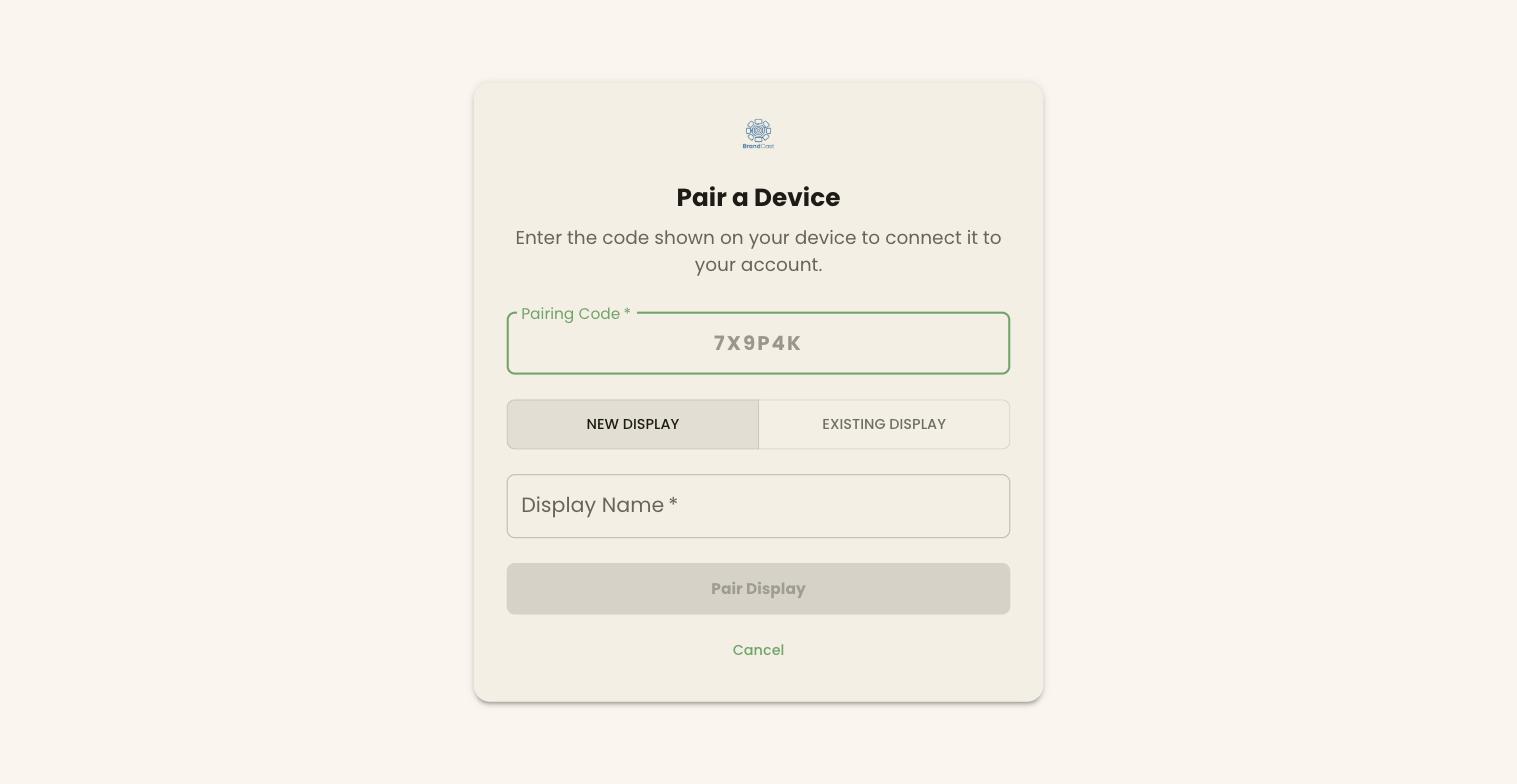
- Scan the QR code on the device with your phone, or open the address it shows. The Pair a Device page opens.
- Check the code in Pairing Code.
- Leave New display selected and enter a Display Name.
- Click Pair Display.
To connect the device to an existing display from this page instead, choose Existing display and pick it under Display to connect. If that display is online, the page warns This display is active. Connecting a new device releases the current one.
When it works, the page shows Display Paired! (or Device Replaced!) and returns you to Zones. The device starts playing within a minute.
On the Free plan you can pair browser screens only. Pairing a BrandCast Player, Sentinel tablet, or other hardware needs a paid plan, and the page shows an upgrade prompt if you try.
Move a display to a new device
Section titled “Move a display to a new device”A display keeps its name, zone, schedule, and Designs when you change the device behind it.
- Open the display’s panel from Zones.
- Under Make a change, click Unpair · Change device on this display.
- Choose Change the device on this display, then click Connect a new device. The Connect a New Device page opens.
- Enter the code from the new device and click Connect Device.
The old device is released once the new one is connected.
Unpair a device
Section titled “Unpair a device”To take a device off a display without replacing it, use Unpair · Change device on this display, choose Unpair this device, and confirm. BrandCast wipes the device so it can be used elsewhere or returned, and the display goes back to Unpaired, ready for a new device.
Unpair · Change device on this display is only available while the display is connected. If it’s greyed out with Reconnect to manage this display, bring the device back online first.
Unpairing doesn’t delete the display. To remove the display itself, use Delete Display — see The display panel.
Troubleshooting
Section titled “Troubleshooting”“Invalid code. Please check the code displayed on your screen.” Check each character against the device. Codes use capital letters and digits only.
“This code has expired. Please refresh the display to get a new code.” Reload the device, or press RESUME PAIRING, and use the new code.
The device never shows a code. Make sure it’s online and can open https://displays.brandcast.app. Smart TV browsers from before about 2019 often can’t run the display app.
Paired, but the screen is blank. Give it a minute for the first sync, then check that the display has a Design scheduled or set as its fallback — see Scheduling Designs on screens.