
Pages
A Page is one full screen of content: the areas on it, what each one shows, and its background. Pages play inside Designs. One Page can be in several Designs at once, and editing it changes it everywhere it’s used.
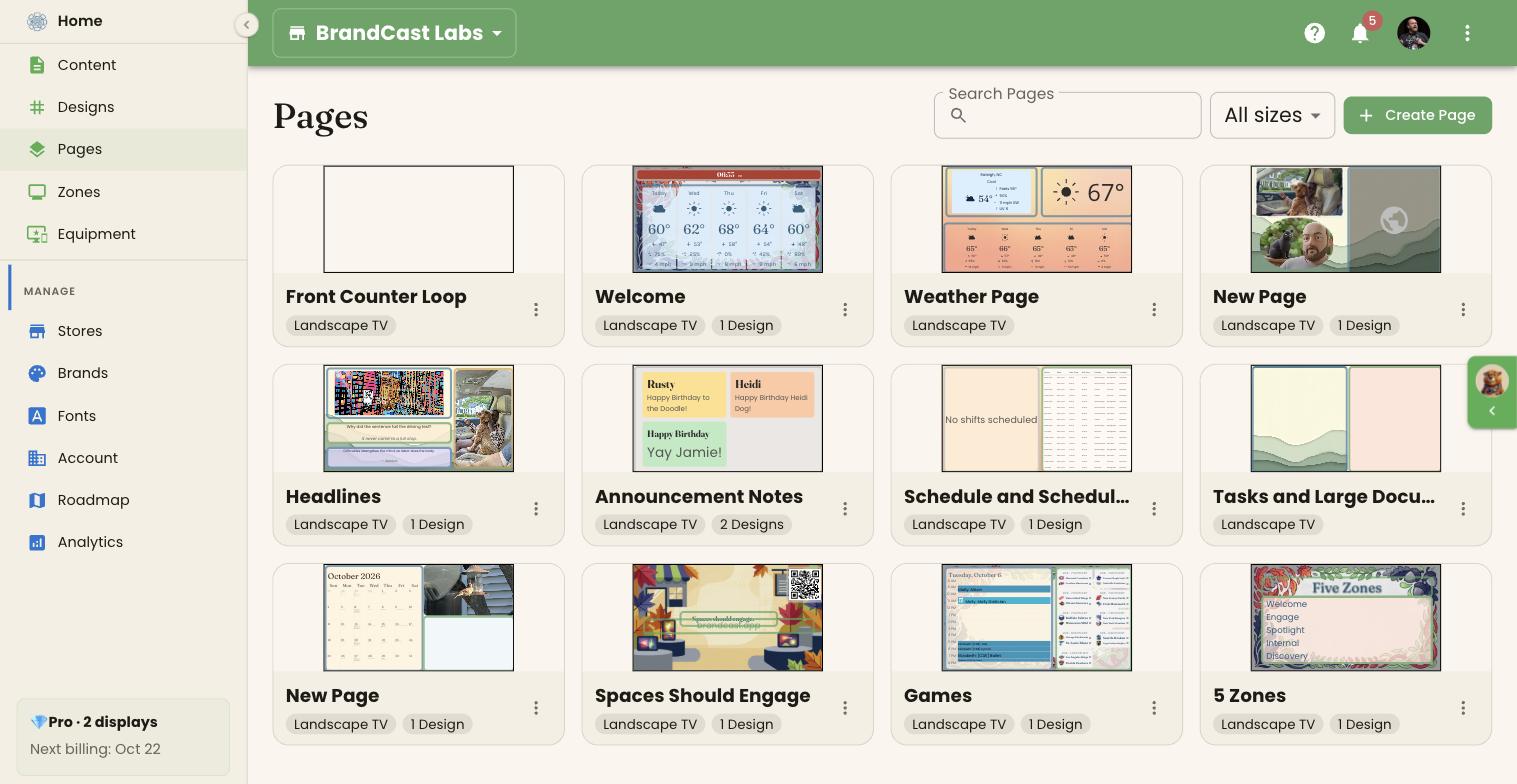
Click Pages in the sidebar to see every Page in your store, whether or not it’s in a Design.
Browse Pages
Section titled “Browse Pages”- Search Pages filters by name.
- All sizes narrows the list to one screen size, such as Landscape TV.
Each card shows a preview, the Page’s screen size, and how many Designs it’s in, such as 1 Design or 2 Designs. A card with no count isn’t in any Design yet. Click a card to open the Page in the editor.
Create a Page
Section titled “Create a Page”Most Pages are made inside a Design, from the editor’s page strip. To make one on its own:
- Click Create Page.
- Choose the screen size.
- Pick a template, or Blank.
The new Page, called “New Page” if you started blank, opens in the editor. It isn’t in any Design until you add it to one.
Add a Page to a Design
Section titled “Add a Page to a Design”From the card’s ⋮ menu choose Add to Design, or click Add to Design at the top of the editor. The Add to a Design dialog lists the Designs with the same screen size. Click one to add the Page to the end of it, then choose Open Design name or Done.
If there are no Designs of that size, it says so; create one first.
Duplicate or delete a Page
Section titled “Duplicate or delete a Page”From the card’s ⋮ menu:
- Duplicate — makes an independent copy. Changes to the copy don’t affect the original.
- Delete — removes the Page for good. It’s greyed out while the Page is in any Design, with the note Used in N Design(s) — remove it from them first. Remove it from those Designs’ page strips first.
Editing a Page on its own
Section titled “Editing a Page on its own”A Page opened from here has a simpler editor than a Design: there’s no page strip, Preview, Where it plays, or Design settings. Everything else — adding content, arranging areas, styling, and saving — works the same. See The Design editor.
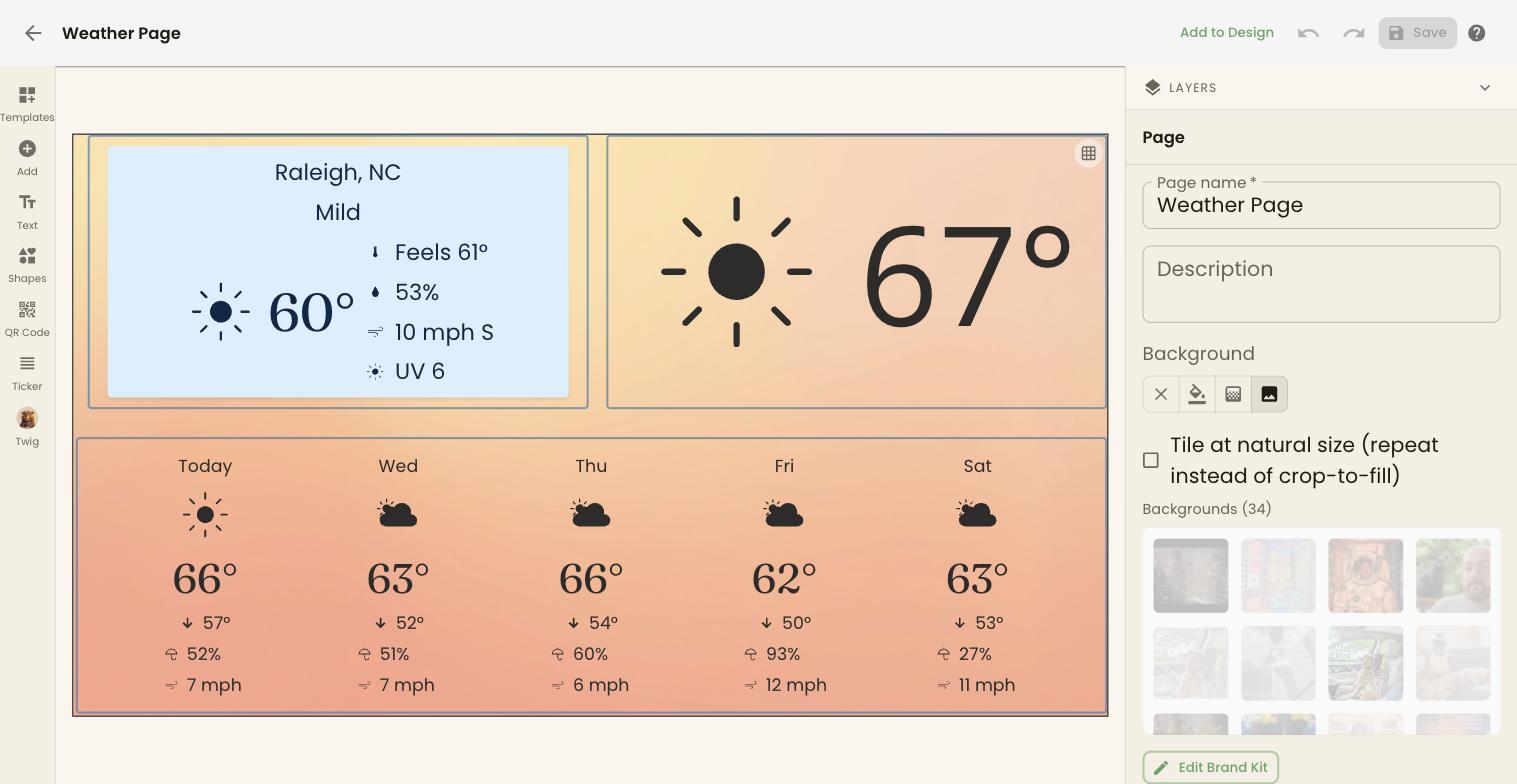
If the Page is in more than one Design, the top bar says Used in N Designs — changes apply to all of them.