
Google Reviews
Show customer reviews from your store’s Google listing on your screens. There’s nothing to sign in to. BrandCast reads the reviews from Google Maps.
Before you start: your store’s Google listing
Section titled “Before you start: your store’s Google listing”Reviews come from the Google listing BrandCast found for your store when the store was created. During onboarding, or in the Add Store setup, you search for your business and confirm it. That links the listing.
If you chose Set up manually instead of picking your business from the search, the store has no linked listing, and the reviews panel says so. To link it, the Account Owner opens Stores, clicks the store, and clicks Find on Google beside Google listing in Store details. Change there picks a different listing. See Stores.
Adding Google Reviews
Section titled “Adding Google Reviews”- Go to Content > Hub and click Social under Add New Content.
- Choose Google Place Reviews and click Next.
- Give it a Name, then set the options below.
- Click Next to add it to a Page, then Create.
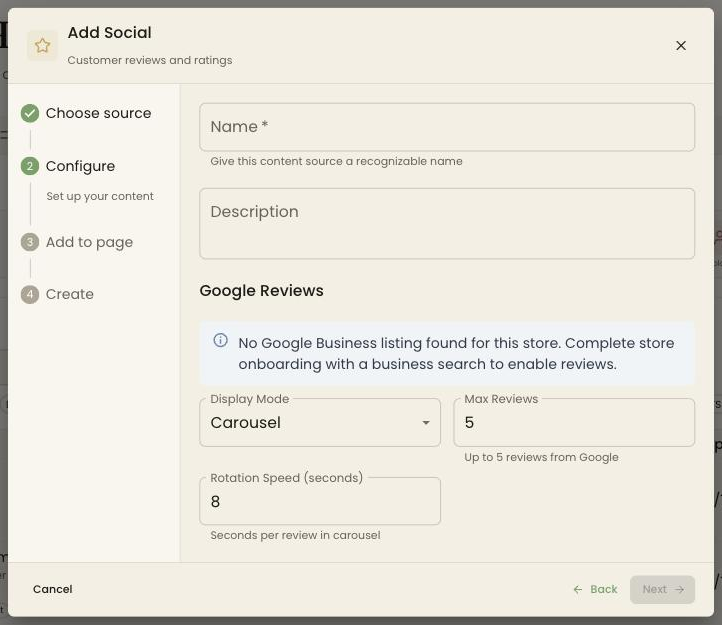
Options
Section titled “Options”| Setting | What it does |
|---|---|
| Display Mode | Carousel shows one review at a time and rotates. List stacks the reviews under your overall star rating. |
| Max Reviews | How many reviews to show, from 1 to 5 |
| Rotation Speed (seconds) | How long each review stays up in Carousel mode, from 3 to 30 seconds |
Google only shares 5 reviews per business, chosen by Google, so you can’t pick which reviews appear.
How reviews update
Section titled “How reviews update”BrandCast fetches your reviews again every night, so new reviews show up within a day.
Troubleshooting
Section titled “Troubleshooting”“No Google Business listing is linked to this store”. Link the listing from the store’s page: Google listing → Find on Google.
The reviews are for the wrong business. The store is linked to a different listing. On the store’s page, click Change beside Google listing and pick the right one.
A new review isn’t showing. Reviews update overnight. If it still isn’t there after a day, Google may not include it in the 5 reviews it shares.