
The display panel
Click any card under Zones to open that display’s panel. It fills the screen; the arrow at the top left takes you back.
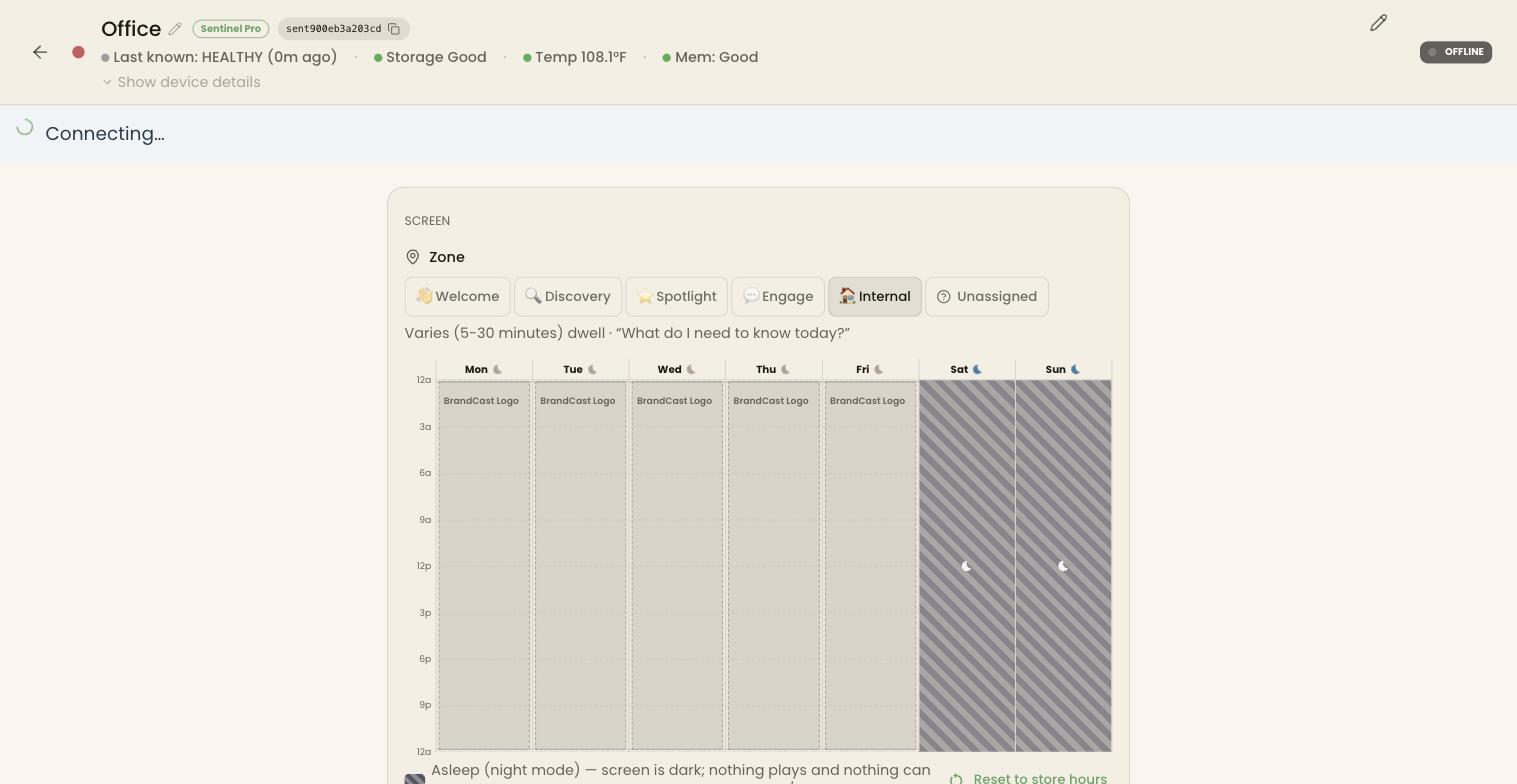
Header
Section titled “Header”- Name — click it, or the small pencil beside it, to rename the display. Enter saves; Escape cancels.
- Device — the kind of device, such as Sentinel Pro or Browser.
- Device ID — click to copy. It matches the ID the screen shows in night mode, so you can tell which physical screen is which.
- Health — the display’s state, then Storage, Temp, and Mem. These readings come from BrandCast Players and Sentinel devices; a browser screen shows them greyed out with Available on Sentinel devices. Show device details adds the app version, screen resolution, and other hardware details.
- Pencil (top right) — opens Edit Display, for the location, zone type, description, and fallback Design. See Adding a display.
- ONLINE or OFFLINE — whether the display is connected right now.
A banner under the header says when the display can’t take commands: Display is offline — management commands unavailable, or Display is asleep (night mode) with the time it wakes.
Screen
Section titled “Screen”Zone sets the display’s role: Welcome, Discovery, Spotlight, Engage, Internal, or Unassigned. The line underneath gives that zone’s typical viewing time and the question customers there are asking. A display in a zone is offered only Designs for that zone, or Designs with no zone. An Unassigned display is offered every Design.
Below it is the week calendar, which sets what plays when and when the screen sleeps. See Scheduling Designs on screens.
Refresh content tells the screen to reload what it’s playing now, instead of waiting for its next check.
Settings
Section titled “Settings”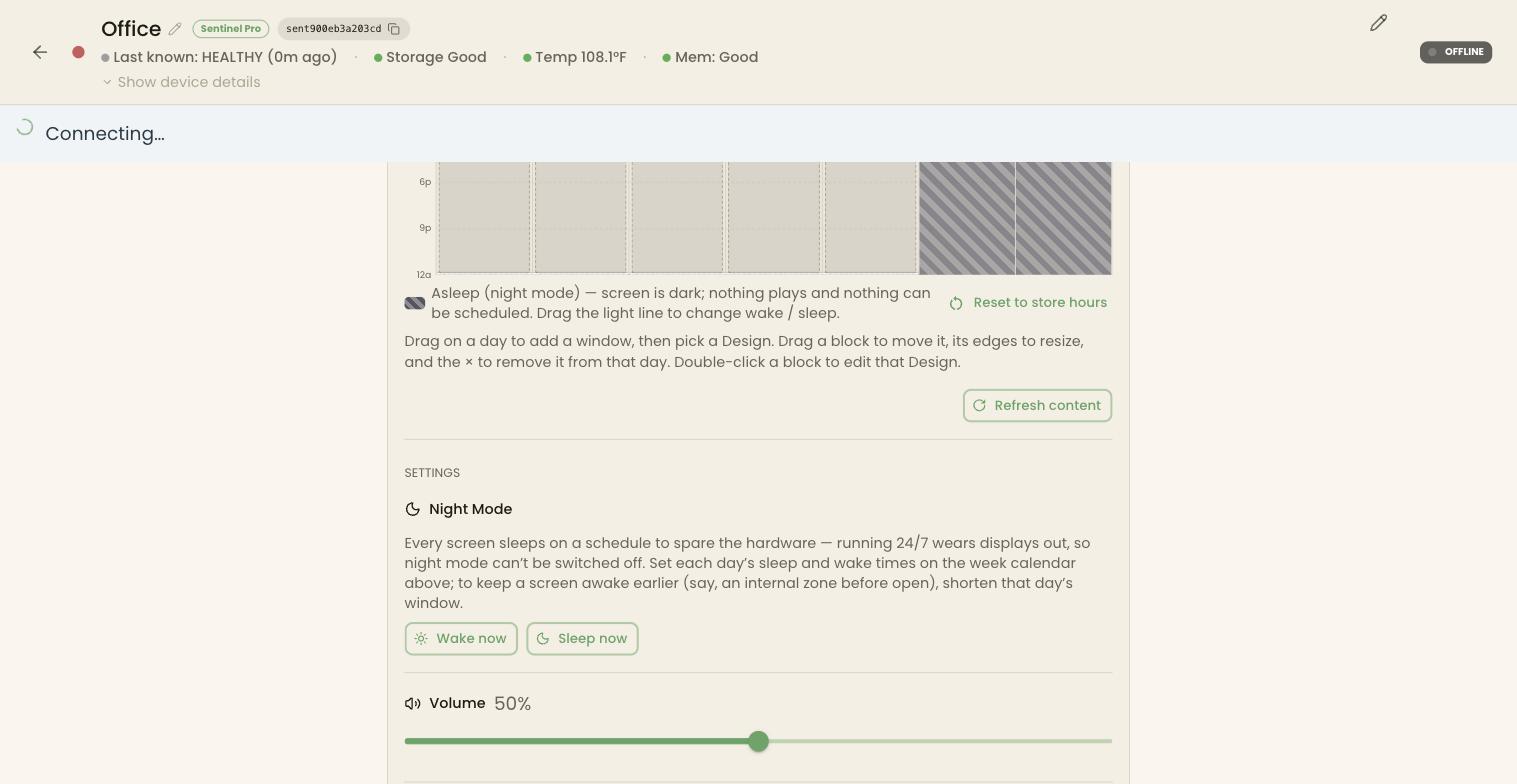
- Night Mode — every screen sleeps on a schedule to spare the hardware, and it can’t be turned off. Set the sleep and wake times on the week calendar. Wake now wakes the screen until its next scheduled sleep; Sleep now puts it to sleep until its next scheduled wake.
- Reduce motion — calms animations and movement on this screen.
- Timezone — click Change to set it. Schedules and night mode run on this time, so it must match where the screen is.
BrandCast Players, Sentinel tablets, and Android screens also have:
- Volume and Brightness.
- HDMI source lock — stops customers switching the TV to another input with its remote.
- Orientation — Landscape, Portrait, Inverted Landscape, or Inverted Portrait, to match how the screen is mounted.
- Admin PIN — the PIN for on-device admin and Bluetooth setup. Click the eye to show it. Enter a New PIN of 4–8 letters and digits and click Save to change it.
HDMI source lock and Orientation need recent device firmware. On older firmware they’re greyed out, and hovering says which version the device is on.
Actions
Section titled “Actions”- Something isn’t working — a short guided check. See Troubleshooting displays.
- Launch remote — on BrandCast Players, Sentinel tablets, and Android screens, a remote control for the device.
- Unpair · Change device on this display — move the display to new hardware, or wipe and release the device. See Pairing a device.
Danger Zone
Section titled “Danger Zone”Click Danger Zone to expand it. From least to most drastic:
| Action | What it does | Available on |
|---|---|---|
| Reboot | Restarts the device; the screen is down for 30–60 seconds | BrandCast Players and Sentinel devices set up in managed mode |
| Shut Down | Turns the device off; someone has to power it back on | BrandCast Players, Sentinel tablets, and Android screens |
| Factory Reset | Wipes the device back to its first-time setup, including Wi-Fi and the Admin PIN | BrandCast Players, Sentinel tablets, and Android screens |
| Delete Display | Removes the display and its schedule and disconnects its device; can’t be undone | Every display |
Your Designs and Pages are never deleted by these actions.