
Payment methods
BrandCast takes payments through Stripe. You change your card and billing details on Stripe’s billing page, which you open from the Billing tab. BrandCast never sees or stores your full card number.
Open Stripe’s billing page
Section titled “Open Stripe’s billing page”- Click Account in the sidebar, then Billing.
- In Payment Method, click Manage Payments.
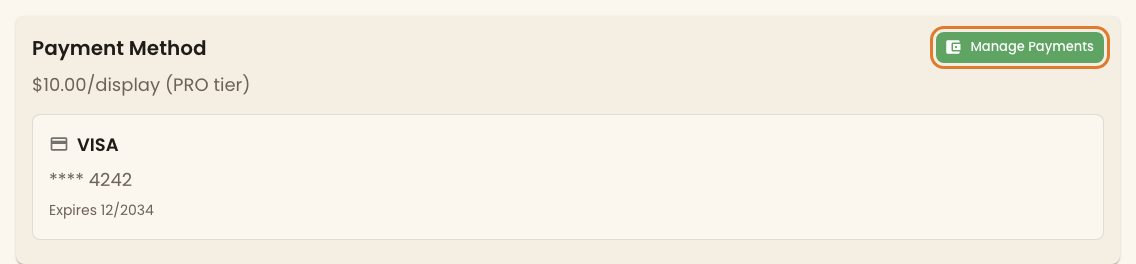
Stripe’s page opens in the same tab. Manage in Stripe, above Billing History, opens the same page. When you’re done, click the Return to link at the top left to come back to BrandCast.
Change your card
Section titled “Change your card”On Stripe’s page, under Payment method:
- To add a card, click Add payment method.
- To make a card the one you’re charged, or to remove one, click … next to it.
- To change the card on your subscription, click the pencil next to the card under Current subscription.
Card details go straight to Stripe and are handled to PCI standards.
Change your billing address or email
Section titled “Change your billing address or email”Under Billing information, click Update information. Sales tax is worked out from this address, and receipts go to this email.
When you’re charged
Section titled “When you’re charged”| What | When |
|---|---|
| Pro, monthly | At the end of each month, after the 30-day trial |
| Pro, annual | When you subscribe, then once a year |
| AI credits, storage and hardware | When you check out |
If a payment fails
Section titled “If a payment fails”If Stripe can’t charge your card, you get an email and a notification in BrandCast with the amount and when Stripe will try again. On the Billing tab your plan shows past_due, and a dot appears on the plan badge in the sidebar. Your screens keep running.
To fix it, click Manage Payments and add a working card, or update the one that failed. Stripe tries again on its next attempt.
If a card is declined, check that the number, expiry date, and billing address are right and that the card hasn’t expired. If it still fails, try another card or contact your bank.
Next steps
Section titled “Next steps”- Invoices and billing history: download receipts
- Managing your subscription: upgrade or cancel Pro