
Zone Management
Every screen in your store is a display. Click Zones in the sidebar to open Zone Management, where your displays are grouped by the role each screen plays in the store.
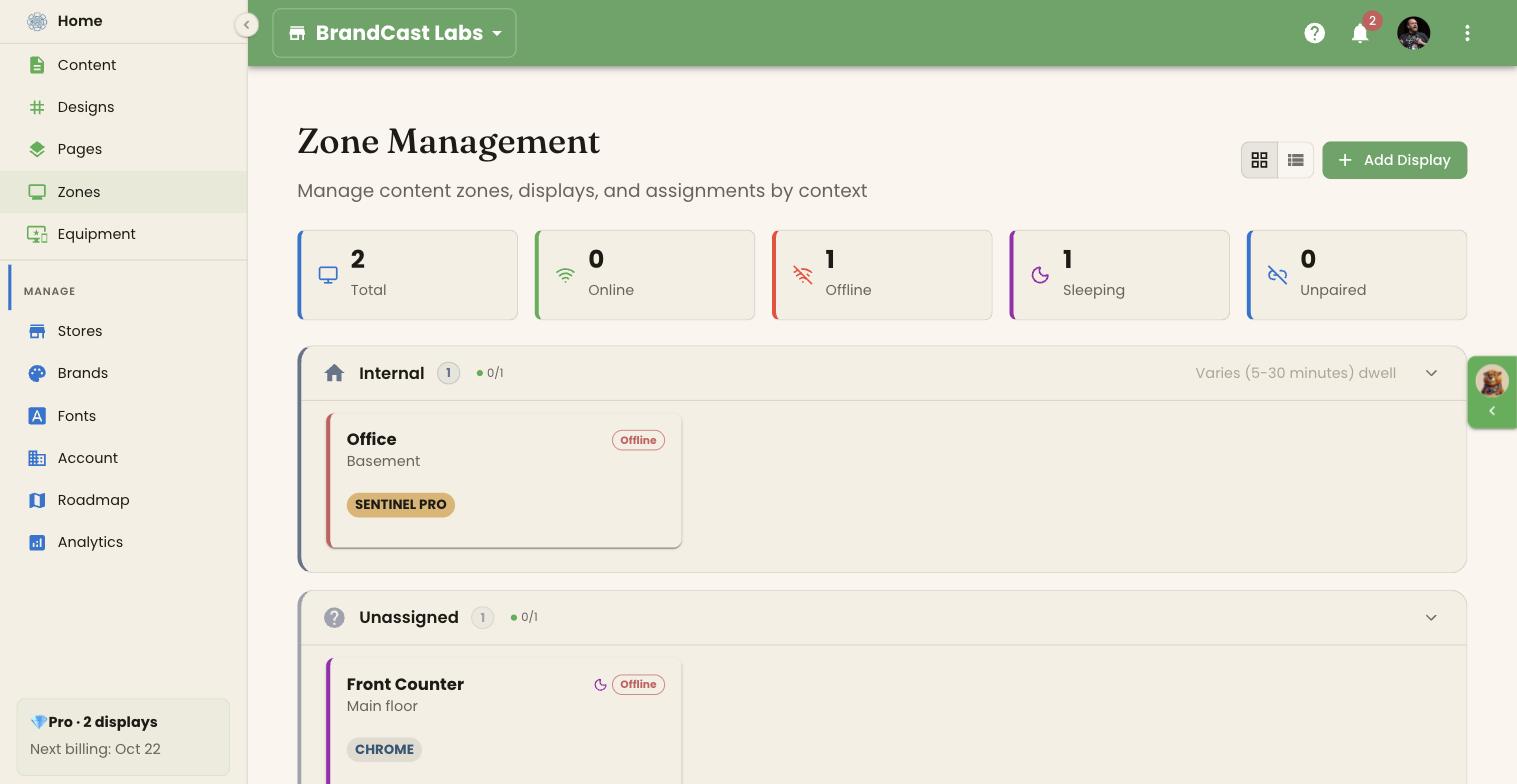
Status counts
Section titled “Status counts”Five counts across the top add up your displays:
| Count | Meaning |
|---|---|
| Total | Every display in the store |
| Online | Connected to BrandCast right now |
| Offline | Paired, but its connection to BrandCast has dropped |
| Sleeping | Inside its night-mode hours |
| Unpaired | Created, but no device is connected to it yet |
Each display is counted once. A sleeping display counts as Sleeping, not Offline, even though its own card usually reads Offline while it’s dark.
A zone is the role a screen plays and how long people look at it. There are five, and each display sits in one of them or in Unassigned:
| Zone | Where it goes |
|---|---|
| Welcome | Entrances and lobbies, where people glance for a few seconds |
| Discovery | Browsing areas, where people explore what you offer |
| Spotlight | A single product or promotion that needs full attention |
| Engage | Places people wait or decide, and look for longer |
| Internal | Staff areas and back of house |
Each zone section shows how many displays it holds, how many are online (for example 0/1), and the typical viewing time. Click a section’s header to collapse or expand it.
A display’s zone also decides which Designs its week calendar offers, so set it before you schedule. Change it from the display’s panel — see The display panel.
Cards and list
Section titled “Cards and list”The two buttons beside Add Display switch between cards and a list. The list shows Status, Name, Zone, and Device in one table. On a phone, only cards are shown.
Each card shows:
- The display’s name, with its location underneath.
- A status chip: Online, Offline, or Unpaired.
- A moon and a purple edge while the display is in night mode. Hover the moon for Currently in night mode schedule.
- The kind of device it runs on, such as SENTINEL PRO, ANDROID, or the browser name, such as CHROME.
- On an unpaired display, a Pair a device button.
Click a card to open the display’s panel, where its schedule, settings, and actions live.
Adding displays
Section titled “Adding displays”Click Add Display to create one. See Adding a display. You can also create a display while pairing a device — see Pairing a device.
On the Free plan you can have one display. Adding a second opens an upgrade prompt instead.