
Connecting Google Workspace
BrandCast can show content from five Google services: Slides, Docs, Sheets, Photos, and Tasks. Each one is a separate connection with its own permission, so you only grant access to the services you use.
What each service does
Section titled “What each service does”| Service | What it brings in | Where you add it |
|---|---|---|
| Google Slides (beta) | A presentation, shown slide by slide | Content > Assets > Add > Connect Google Slides |
| Google Docs (beta) | A document, shown page by page | Content > Assets > Add > Connect Google Docs |
| Google Sheets (beta) | A spreadsheet, shown as a table | Content > Assets > Add > Connect Google Sheets |
| Google Photos | Photos and videos you pick, copied into your library | Content > Assets > Add > Import from Google Photos |
| Google Tasks | Task lists | Content > Tasks |
Google Sheets can also be a staff schedule source. See Google Sheets Schedule.
Connecting a service
Section titled “Connecting a service”You connect the first time you use a service:
- Go to Content > Assets and click Add.
- Click Connect Google Docs, Connect Google Slides, or Connect Google Sheets. Until you connect, each shows Authorize first underneath.
- A Google window opens. Choose your Google account and click Allow.
- Back in BrandCast, the menu item now reads Import from Google Docs (or Slides, or Sheets).
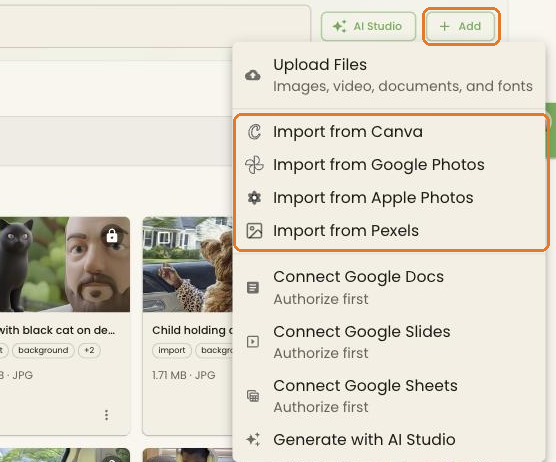
For Google Photos, click Import from Google Photos. If the store isn’t connected yet, the dialog shows Connect to Google Photos first.
You can also connect each service from the store’s page: open Stores, click the store, and use the Connect buttons under Integrations > OAuth Services.
Read-only, file by file: Slides, Docs, and Sheets only get access to the files you pick in Google’s file picker, not your whole Drive. BrandCast can’t edit or delete anything in your Google account.
Bringing in a file
Section titled “Bringing in a file”- Go to Content > Assets and click Add.
- Click Import from Google Slides, Import from Google Docs, or Import from Google Sheets.
- Google’s file picker opens. Pick the file.
- The file appears in your library with a Google badge.
To show it on a screen, add it to a Page with a Presentations, Documents, or Spreadsheets content item from Content > Hub. See Presentations, Documents, and Spreadsheets.
Keeping files up to date
Section titled “Keeping files up to date”Google Sheets files refresh on their own once a day, overnight between midnight and 4 AM store time.
Slides and Docs are copied when you import them. To pick up later edits, set a refresh schedule:
- In Content > Assets, click the ⋮ menu on the file and choose Settings.
- Under Refresh Settings, pick an Auto-Refresh Schedule: Every hour, Every 6 hours, Daily at 6 AM, or Daily at midnight. Times use the store’s time zone.
- Click Save Changes.
The same dialog shows when the file was Last refreshed and has an Open in Google link.
To pull in edits straight away, click the file’s ⋮ menu and choose Refresh now. It works for Slides, Docs and Sheets.
Pick a schedule. New imports start on Manual only, which never refreshes on its own. Choose one of the automatic schedules, or use Refresh now each time you edit the file in Google.
Google Photos
Section titled “Google Photos”Import from Google Photos opens Google’s photo picker. The photos and videos you choose are copied into your library, where you can use them in slideshows and Pages. Photos you add to Google later aren’t picked up automatically. Import them the same way.
Disconnecting
Section titled “Disconnecting”Open Stores, click the store, and click Disconnect next to the service under Integrations. Each service disconnects on its own. Files already in your library stay there, but Slides and Docs stop refreshing.
Troubleshooting
Section titled “Troubleshooting”The Google window doesn’t open. Allow pop-ups for the BrandCast admin in your browser and try again.
“Access blocked” or the organization blocks the app. Your Google Workspace administrator may limit third-party apps. Ask them to allow BrandCast in the Google Admin console.
A file doesn’t show my latest edits. Check its Auto-Refresh Schedule under Settings. If it’s Manual only, switch it to an automatic schedule, or choose Refresh now from the file’s ⋮ menu.
The file picker doesn’t show a file. The picker only shows files your Google account can open. Check that you’re signed in with the right account and have at least view access to the file.