
Google Sheets Schedule
Beta: Google Sheets Schedule is in beta. It may change.
No scheduling software? Keep your schedule in a Google Sheet, and BrandCast reads the shifts from it.
Setting up a schedule takes two parts: a source that brings the shifts in, and an Employees content item that shows them on a screen. This article covers the source. The display is covered in Employee Schedules.
Step 1: Set up the sheet
Section titled “Step 1: Set up the sheet”The first row of the sheet must be a header row with these column names. Each row below it is one shift.
| Column | Required | Example |
|---|---|---|
| Name | Yes | John Smith |
| Date | Yes | 2026-01-25 or 1/25/2026 |
| Start Time | Yes | 9:00 AM or 09:00 |
| End Time | No | 5:00 PM or 17:00 |
| Position | No | Cashier |
| Department | No | Front of house |
| Location | No | Main Street |
Times are read in the store’s time zone. Position and Department are what the display’s filters use, so fill them in if you want different screens to show different teams.
Step 2: Add the source in BrandCast
Section titled “Step 2: Add the source in BrandCast”- Go to Content > Workforce and click Add Source.
- Set Source Type to Google Sheets.
- Give the source a Name.
- Click Connect to Google and allow access. The Google Account box changes to Connected.
- Click Choose Spreadsheet from Google Drive and pick your sheet in Google’s file picker.
- Pick the tab that holds the schedule in Sheet.
- Optional: click Test Connection to check that BrandCast can read the shifts.
- Click Add Source.
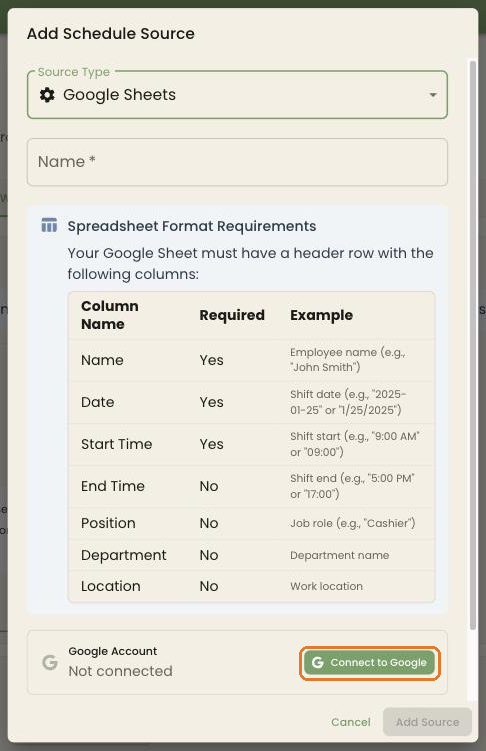
BrandCast only gets access to the spreadsheet you pick, not the rest of your Drive. It can’t change the sheet.
Then add an Employees content item from Content > Hub to show the shifts on a screen. See Employee Schedules.
Keeping it current
Section titled “Keeping it current”BrandCast reads the sheet again at the source’s Sync Interval: 3, 6 (the default), 12, or 24 hours. After editing the sheet, click Sync Now on the source card to update straight away.
Troubleshooting
Section titled “Troubleshooting”Test Connection or the source card reports a missing column. Check that the header row uses the column names above (capital letters don’t matter), and that it’s the first row of the tab you picked.
Some rows are skipped. Each row needs a Name, a Date, and a Start Time. Rows with a date or time BrandCast can’t read are skipped. Use one format for the whole column.
The source card shows FAILED with a message about credentials. The Google connection is missing. Edit the source and click Connect to Google again.
Some shifts are missing on screen. Check the Shifts list on the Workforce tab first. If the shifts are there, check the Employees content item’s Days Ahead, Maximum Shifts, and filters.