
Tasks Tab
The Tasks tab lets you connect task list sources and show to-do items directly on your displays.
Sources
Section titled “Sources”The Sources section lists all connected task sources with a count badge showing how many are configured. Click Add Source to connect a new task source.
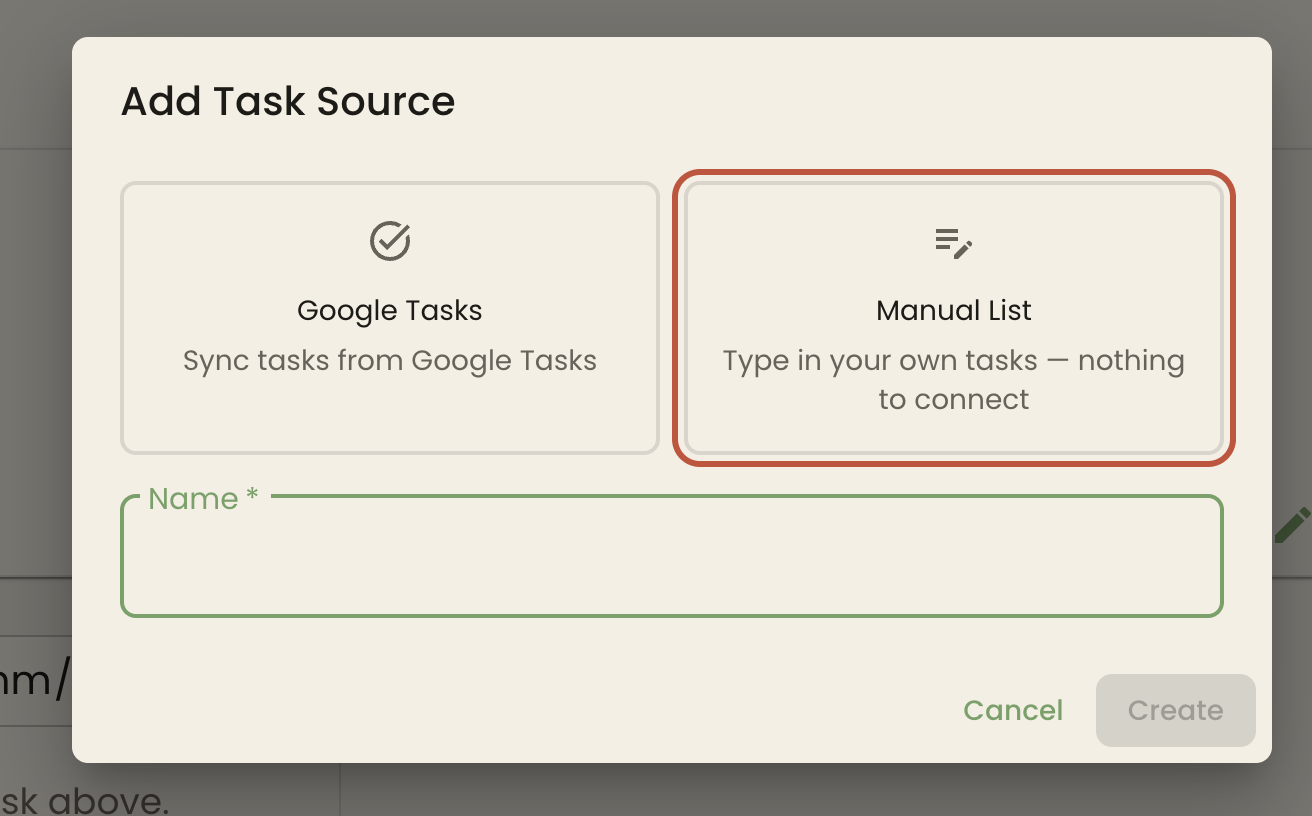
The Add Task Source dialog offers two types:
- Google Tasks: syncs tasks from your Google account. See Google Tasks.
- Manual List: a to-do list you type into BrandCast, with nothing to connect. See Manual tasks.
A Google Tasks card shows the sync interval, the last sync time, and a Connect button to authorize access.
Each source card includes edit and delete actions for managing the connection.
The Tags section below Sources lets you create tags to organize your task sources. Click Add Tag, enter a name and color, then click Create. Each tag shows how many sources it’s assigned to and whether it’s an AI or Manual tag. Tags attach to a task source — not to individual tasks — so tagging a source and then filtering by that tag in the Tasks section below shows every task from every source carrying that tag.
The Tasks section shows a combined, read-only list of every task pulled from your sources — synced tasks and the tasks in your manual lists alike — with a count badge showing the total. Click the refresh icon to re-fetch.
You can:
- Search by title using the Search tasks… box.
- Filter by tag: click the tag chips to narrow the list to sources carrying those tags (multiple selections combine), or click Clear to reset.
Each row shows the task’s title (struck through when completed), a checkbox-style status icon, the source name and list name as chips, and a due date if one is set. This list is read-only — to add, edit, complete, or delete a task, use the inline task list under its Manual source card in the Sources section above (expand the card with Show Tasks, or manage synced tasks from their provider directly).
If there are no tasks yet, the list shows No tasks found with a note that tasks will appear here from your task sources and connected providers. If a search or tag filter excludes everything, it shows No matching tasks instead.
How Tasks Appear on Displays
Section titled “How Tasks Appear on Displays”Connecting a source here does not by itself put it on a display. On the Hub tab, click Tasks in the Add new content row (or Add New, then Tasks) to create a Tasks content source, choose which of your sources to pull from, and place it on a page. See Creating Content. Task content renders as a clean, scrolling list — place it in a sidebar, a dedicated zone, or anywhere in your layout that makes sense.